Welcome to this online demonstration of...

AcuBase Standard 2.003!


Home


AcuBase Demo

Overview

Inventory Specifics

Upon opening the "Inventory" database from the Main Menu, you are taken directly to the "List View" of the Inventory database. At this point, all of the inventoried items in the database are presented in order of their Product Names. You may choose to view (sort) inventory items by Category (herbs, formulas, needles, etc.), Name, Vendor, or by the items that you most need to buy (Open To Buy) by clicking on the icon next to each of these categories. If you want more details on a given item in the database or to change anything about that record, simply click on the button to the left of it to view the record as a "form" (this does the same as the "View as Form" button at the top of the screen). To go from one record to the next in Form View, simply click on the arrow buttons to go forward or backward. Context-sensitive help is available from every screen. Just look for the "?" button at the top and/or bottom of the screen.

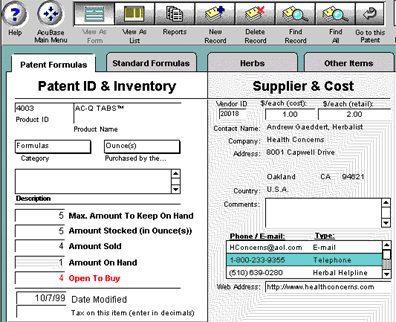
When you go to Form View, you will notice that there are four tabs which separate items into the categories of Patent Formulas, Standard Formulas, Herbs, and Other Items. This allows AcuBase to keep track of items properly in other parts of the program. Regardless of which tab you use, all of the layouts are the same, and may be broken down as follows:

  • Product ID: Every record requires a unique Product ID, or product identification number. When you click on this field, you will be given a pop-up list of the items currently in the database to choose from. (If you are in the "Patent Formulas" tab, you will see all the patent formulas in the database, etc.) If you wish to add a product that is not an herb or formula, and/or is not already in the AcuBase database, do it from the "Other Items" tab, or add it to AcuBase's herbs or formulas database before entering that item into your inventory.) Choosing items from the pop-up list also automatically connects them to their respective herbs or formulas database within the program.
  • Product Name: This is a short name for the item you are inventorying, and this field should auto-fill when you choose from the Product ID pop-up list.. Examples might be "Carbo 1.5 inch needles" or "Yin Qiao San," or, if it's a raw herb that you stock, the name of that herb.
  • Category: This is a one- or two-word description of the class of the item you are inventorying. Examples included with AcuBase Pro are needles, herbs, and miscellaneous. You can edit these items or add your own by going to "edit…" (an option when you click on the Category field).
  • Purchased by the…: This field reflects the units that the item is bought by. For instance, when you buy 1.5 inch needles, you would probably buy them by the box, so you would put "box(es)" in this field. For herbs, you may buy them by the ounce(s) or pound(s), so you would select that. Like the Category field, you may modify and/or add to these values by selecting "edit…" (an option when you click on the Purchased by the… field).
  • Description: Enter a full description of the item (as long as you would like) in this field, and/or any significant details related to it.
  • Amount Stocked…: This is where you enter the amount of the item you currently have. When taking inventory, this is the field where you will enter the amount of each item that you currently have. Note: it is essential that, every time you restock an item, you change the Date Last Stocked field!
  • Amount Sold Since Last Stocked…: This field tells you how many units of this item you may have sold since last stocking it. This field connects to your patient invoices to determine how many of a given item you have sold since the last time you stocked the item, based on the Inventory database's "Date Last Stocked" field. Thus, it is essential that, every time you restock an item, you change the Date Last Stocked field! Otherwise, this field (Amount Sold) will give incorrect information.
  • Max. Amount to Keep on Hand: This is where you enter the amount of this item that you would ultimately like to keep in stock when you have all that you need. In other words, if you like to keep 5 boxes of needles in stock, but no more, then you'd want to enter "5" into this field. AcuBase uses this field when calculating the amount of an item that is open to buy by subtracting the amount you have on hand from the max. amount to keep on hand. For each new record that is created, AcuBase auto-sets this field to 5.
  • Open to Buy: This field subtracts the maximum amount of an item you want to keep on hand from the amount actually stocked and sold to determine if and how much of an item is open to buy.
  • Date Last Stocked: This field must be filled with the date you last stocked the specific item in inventory so that the calculations in the above-mentioned fields work properly. Each time you add stock to your inventory for a given item, change this field to reflect the date you restocked.
  • Tax On This Item: When you add a new record to the Inventory database, this field auto-fills with the tax rate you entered for Products in the AcuBase Standard 2.003 Preferences (from Main Menu). You can reset thus amount here on a per-item basis, and it reflects as tax added to this item's retail price when you sell to a patient
  • Supplier & Cost: These fields relate to the supplier of this item. Start by clicking on the ID field. This will give you a pop-up list of all vendors in the Vendor Information database. If the supplier of this item is already in that list, select their name, and their information will automatically appear in the fields below. If they are not in the list, you will need to add them into the Vendor Information database first (see instructions on the Vendor Information database). The ID numbers are supplied by AcuBase Pro and may not be modified. While most fields that auto-fill may only be modified from within the Vendor Information database, you may add or edit information in the Comments, Phone/E-mail, and Web Address fields.
  • Enter the cost to you when you buy this item (Cost) and the amount that you charge for this item (Retail) into the appropriate fields. These fields' currencies (whether in dollars, British pounds sterling, French francs, etc.) may be modified through the "Money / Billing" tab under "Preferences" from the AcuBase Standard 2.003 Main Menu. While entering the cost of the item is optional, you must enter a retail price in order to bill patients for a given item.
  • Use the Comments field to enter any general information about this supplier. Information entered here will be entered into the "General Comments" field for this supplier in the Contacts database, as well.


OTHER FEATURES

Links to Invoices

Each time you use the Billing database to create a new invoice for a patient, you have easy, instant access to a pop-up list of all products available to sell from your inventory. Upon clicking on one of the products, its price (including tax) is auto-entered and calculated, and the amount that you sold is automaically taken out of your available inventory to give you an accurate representation of the amount of the item you have left.

Links to the TCM Reference Library

When you add new items to the inventory database, you have access to a pop-up list of available herbs, formulas, and patent formulas in your TCM Reference Library. Simply point and click on the item in the list which you would like to stock. If you are stocking a patent formula, its related vendor information is also entered automatically! And, for each item in your inventory, it will also show up within the TCM Reference Library. So, for example, if you stock Ai Ye and your vendor is Lotus Herbs, whenever you go to Ai Ye in the TCM Reference Library, you will not only see all the information about that herb, you will also see how much is in stock and from which vendor.

Going to Related Records

From within Form View's Patent Formulas, Standard Formulas, or Herbs tab, you may click on the "Go to this Patent/Formula/Herb" at top of the screen to go directly to that specific herb or formula's information in the Reference Library. For instance, if you are looking at the Inventory record for the herb "Ai Ye," by clicking on the "Go to this Herb" button at the top of the screen, you will be taken directly to Ai Ye within the Herbs database to see detailed information about that herb.

Home Back Next