
Welcome to this online demonstration
of...
AcuBase Standard 2.003!
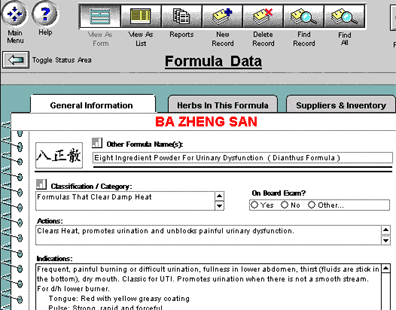
Details About The Formulas Database To see more details about a given formula,
one may easily switch to Form View by simply pressing a button located
next to the name of the formula, or by clicking on the "View As
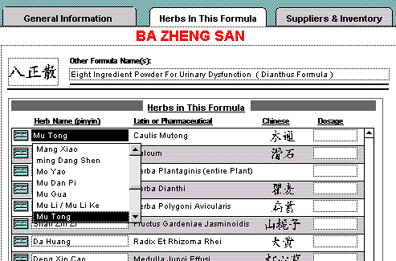
Form" button at the top of the screen... The "Herbs In This Formula"
tab will show you all of the related herbs that this formula contains.
To add or change an herb, simply click on the Herb Name field to see
an alphabetical pop-up list of available herbs. When you click on an
herb, its Latin name and Chinese characters appear automatically. And,
by clicking on the box next to any given herb, you will be taken directly
to that herb in the Herbs database. The third tab, "Suppliers &
Inventory," shows you all of the vendors in AcuBase who supply
this formula, and, if you have it in inventory, you will see that, as
well (and have another instant relational link to it). You can also
click on the question mark icon next to any vendor to get detailed information
about a given vendor. (This screen is similar to the same screen in
the Herbs database. Click on the "Previous Page" button below
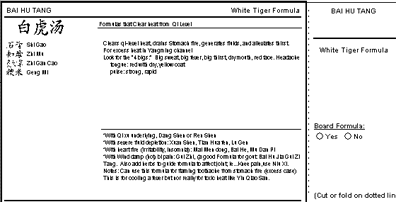
to see it.) And as we stated above, formulas may
be printed out on index cards, as longer reports, or even in a format
which includes only the names of the herbs in Chinese and pinyin, along
with dosages (so that you can make your own formulas and have prescriptions
filled at an herbal pharmacy). An herb card example may be seen below...
Back software
page acupuncture site
AcuBase
Demo
->Acupoints
->Herbs
->Formulas
->Patents
->Review Questions
Back software pagealternative
health care site 
 Back
BackNext
