
Welcome to this online demonstration of...
AcuBase
Standard 2.003!
Doing
Your Billing With AcuBase The fourth
tab in the Patient Information & Billing database is the Billing
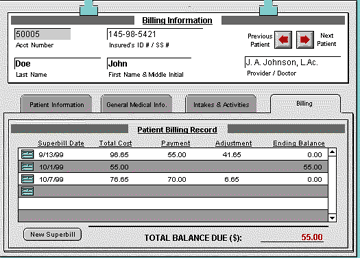
tab. Upon clicking on this tab, you are taken to the Patient Billing
Record, a summary list sorted by date of all of this patient's invoices.
You may
view the date of the invoice, the total cost, the payment made, any
adjustments, and the ending balance for each invoice (if any). The sum
of all outstanding invoice totals may be seen at the bottom of the screen
in red type ("Total Balance Due"). To get details on any given
invoice, simply click on the button to the left of the invoice date. To create
a new superbill or HCFA billing entry, click on the "New Superbill"
or "New HCFA" button at the bottom of the screen. This will
take you to the Billing Entry window. At the top of the screen, you
will see that the patient's name, invoice number, and the current date
have already been entered. (These items do not show in the example below.)
Tab through the fields to enter data. (NOTE
that the HCFA forms are a free, optional, downloadable feature for U.S.
users. If you wish to use HCFA forms with AcuBase 2.003, you will
need to download the HCFA files from Trigram's update page. Simply
email From Tao to Earth for the URL of the upgrade. Be sure to include
your From Tao to Earth customer number in your message.) The
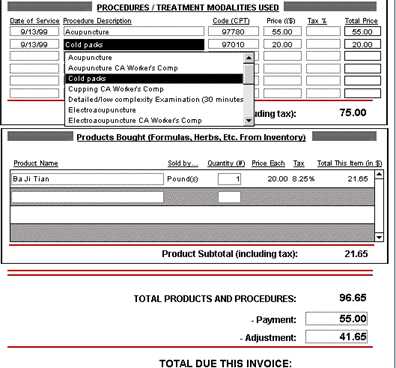
first section of the superbill above is the Procedures / Treatment
Modalities Used section. You may enter up to six treatments here. Enter
the date of each procedure. When you tab over to the Procedure Description
field, you will see a pop-up list taken from the Procedures list in
the AcuBase Standard 2.003 Main Menu Preferences. Click on the appropriate
procedure, and it's code, price, and taxed amount (if any) will auto-fill.
The
next section in the screen above is for products that are sold to
patients. Click on the Product ID field to see a pop-up list of all
available products in the Inventory database. Select the one you want
to auto-fill the other fields, and enter the amount (quantity) for each
item. You may
also enter the payment that the patient made on this invoice, and the
adjustment (discount), if any, that you would like to give. The final
field on this screen is the Notes field. (This field does not show in
the example above, but would normally appear below the "Total Due
This Invoice" field.) Enter any notes that would like to have attached
to this invoice. When you
are ready to print the invoice, you can click on the "Print Superbill"
or "Print HCFA" button at the top of the screen. This will
take you to a preview of the invoice or HCFA. If you choose to
print a Superbill, it will include your clinic name and logo (from Main
Menu Preferences); an invoice number; patient address and insurance
information; diagnoses (from the Patient Information database); the
procedures and products you billed for; the monetary totals; a line
at the bottom of the first page for your signature; and any notes you
may have added, which will print on a separate page. Note that you are
limited to printing 15 products on the superbill invoice. From the
Superbill entry screen, you may also choose to list all of the other
invoices related to this patient by clicking on the View As List button;
you may choose to return to the Patient Information & Billing database;
or you may return to the AcuBase Standard 2.003 Main Menu. Changing
the Look of Superbills or Activity Records If you
own FileMaker Pro 4.0 or higher for Mac or PC, and know the program
well, you may change the look of your faxes, intakes, call records,
patient progress reports, and/or patient invoices/superbills. AcuBase
Standard 2.003 has left these layouts accessible for this purpose.
AcuBase
Demo
 Home
Home Back
BackNext
