
Welcome
to this online demonstration of...
AcuBase
Standard 2.003!
The
Patents & Vendors Databases
The third
tab, "Cautions, Dosage, Notes," shows fields full of just that:
Cautions, Dosage, and other Notes related to each patent formula. Again,
this information will be limited to what was supplied to us by the patent
formula's vendor. The Vendor
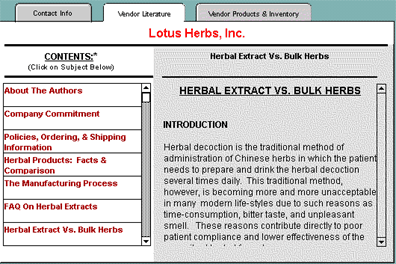
Literature tab is where you would find much more detailed information
about that vendor, provided to us by the vendors themselves. In the
case of Lotus, they sent us their "Clinical Manual of Oriental
Medicine," with hundreds of pages of information. We organized
that information into a Table of Contents. Each item under "Contents"
may be clicked upon to reveal its associated text. In the example below,
the user clicked on "Herbal Extract Vs.Bulk Herb." You may
scroll down under Contents to see further information, as well. The Vendor
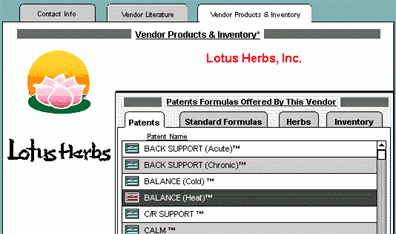
Products & Inventory section of the Vendor Information database
shows all patent formulas, standard formulas, and herbs in AcuBase which
are supplied by this vendor. Next to each item is a button which may
be clicked up to go directly to that item. If you were to click on the
"Inventory" tab for Lotus Herbs below, you would see a list
of all products that you have in inventory from that vendor. Again,
you have buttons next to each item which, when clicked, will take you
directly to that item in the Inventory database. In addition
to the top vendors which come with AcuBase Standard 2.003, you may edit
the vendor information, delete it, or even add as many of your own vendors
as you like. For the
purposes of this demo, we entered the Vendors database by clicking on
the vendor logo in the Patent Formulas database, but you could also
go directly to the Vendor Information database from the AcuBase Standard
Main Menu. In that case, just like any other database in AcuBase, you
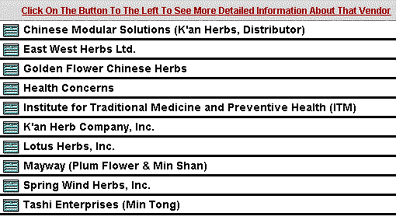
will be presented with a list of all of the vendors in the database. Simply
click on the vendor you are interested in to get more information on
that vendor (you'll be taken to the Contact Info tab, which is four
pictures above this paragraph.)
Back
software page acupuncture site Back
software page acupuncture site
AcuBase
Demo
->Acupoints
->Herbs
->Formulas
->Patents & Vendors
->Review Questions
Like the Standard Formulas database, the Herbs & Rationale tab will
show you all of the herbs in each formula. To add or change an herb,
simply click on the Herb Name field to see an alphabetical pop-up list
of available herbs. When you click on an herb, its Latin name and Chinese
characters appear automatically. And, by clicking on the box next to
any given herb, you will be taken directly to that herb in the Herbs
database. Dosage is given if it was supplied to us from the patent formula's
vendor.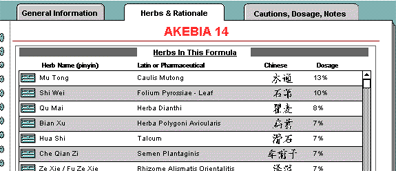
As stated
above, if you were to click on the logo associated with the vendor of
a given patent formula (or the "Go To Vendor" button), you would
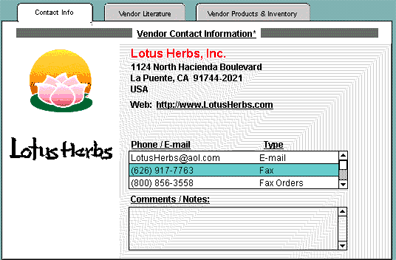
get further information on that vendor. Using Lotus Herbs as an example,
you would first see the following screen, showing general contact information
related to Lotus...
Back software pagealternative
health care site 
Back software pagealternative
health care site
 Back
BackNext
