
Welcome to this online demonstration of...
AcuBase
Standard 2.003!
General
Patient Information Screens Upon clicking
the Patient Information & Billing database icon from the Main Menu,
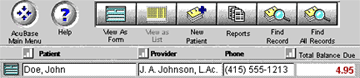
you are taken directly to "View As List" mode, where patients
are presented in alphabetical order. You may also view the provider
name, patient phone number, and total balance due from this screen.
You may sort this list by patient name, provider, or total balance due
by simply clicking on the sort button found next to each of these fields'
names. (The list below has only one patient in it for the sake of this
demo. It would normally show all patients!) To get
more details on a given patient's record, click on "View As Form"
at the top of the screen, or click on the button to the left of each
patient's name. This will take you to the first of four "Form Views"
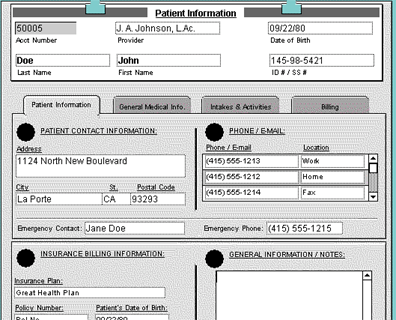
available in the Patient Information & Billing database. What you
see below is the "Patient Information" view (or tab). The
others are "General Medical Information", "Intakes &
Activities," and "Billing." The first
tab, which is the Form View tab shown by default when you first enter
the Patient Information & Billing database, is the Patient Information
tab, which shows the patient's address and emergency contact information.
(See picture below.) Insurance billing information may also be found
on this screen, as well as a large General Information / Notes field
that allows you to enter a virtually unlimited amount of general info Note that,
on all Form View screens, the patient's ID number (assigned by the database),
name, date of birth, and social security (or internal identification)
number are provided at the top of each Form View screen. The patient
ID number field is created by AcuBase, and is not modifiable. Patient
name, date of birth, and social security number may be modified from
the Patient Information tab only. To go from
one record to the next in Form View, simply click on the arrow buttons
to go forward or backward. Context-sensitive help is available from
every screen. Just look for the "?" button at the top and/or
bottom of the screen. (Note--neither of these buttons show in the above
preview. Both normally appear at the top of the screen.)
AcuBase
Demo
->General Info
->Medical Info
->Intakes & Activities
->Billing
->Reports
 Home
Home Back
BackNext
