
Welcome
to this online demonstration of...
AcuBase
Standard 2.003!
Tracking
Patient-Specific Intakes & Activities The next
tab, the Intakes & Activities tab, allows you to view, enter, and
print events, or activities, related to the patient. The activities
database here works the same and has the same options as the activities
database that you may access from the Contacts database, and activities
entered here may also be accessed from the Contacts database. All activities
are shown in list format in date order. Creating
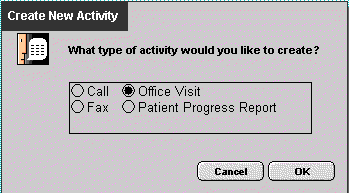
New Activities Related to a Patient When you
click on the New Activity button, you are presented with four choices
of activities to create: a call record, a fax, an office visit (intake),
or a patient progress report. Graphic
illustrations of the following features (this page will take a while
to load...) If you
choose to create a call record, you will be presented with the Call
Record screen. The contact's ID, name, and the date that the action
record (the call record) was created are automatically entered for you.
You can click on the Action Status field to display a list of the status
of this call (whether the call is open, closed, in process, etc.). You
may edit this status list and add your own choices by clicking on the
Action Status field and selecting "edit…" Enter all
the information you would like to about this call in the Notes field.
When you are finished, you may print the call record by clicking on
the Print Call Entry button; you may choose to list all of the other
activities related to this patient by clicking on the View As List button;
you may choose to return to the Patient Information & Billing database;
or you may return to the AcuBase Standard 2.003 Main Menu. If you
choose to create a fax, you will be presented with the Fax Entry screen.
On this screen, all you need to do is enter who the fax is going to,
who it is from into the From field, and type in any message that you
want to have appear on the cover sheet in the Fax Message field. You may
print the fax by clicking on the Print Fax button; you may choose to
list all of the other activities related to this patient by clicking
on the View As List button; you may choose to return to the Patient
Information & Billing database; or you may return to the AcuBase
Standard 2.003 Main Menu.. If you
choose Office Visit, you will be presented with the Office Visit Intake
screen. On this
screen, you have an unlimited amount of space to write as much as you
would like to about a given patient intake. The patient's name, provider,
today's date, and the status of the intake may be viewed at the top
of the screen. You may change the date or the status. The title of the
intake ("Office Visit Intake" by default) may be edited from
the "General" tab of the AcuBase Standard 2.003 Main Menu's
Preferences. As with
any part of AcuBase, you may change fonts, font sizes, alignment of
text, etc. from the Format menu. You may print the office visit by clicking
on the "Print this Intake" button; you may choose to list
all of the other activities related to this patient by clicking on the
View As List button; you may choose to return to the Patient Information
& Billing database; or you may return to the AcuBase Standard 2.003
Main Menu. (Several of these options may not show on the screen above.) If you
choose Patient Progress Report, you will be presented with the Patient
Progress Report entry screen. The Patient Progress Report is intended
to be used as a form that you may send to insurance companies or other
practitioners who may have referred this patient. On this screen, you
may tab through each field and enter relevant information. Several pop-up
menus appear, all of which may be edited by going to the "edit…"
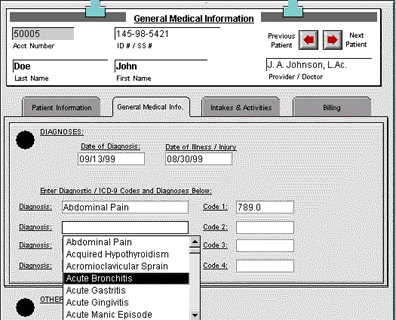
option at the bottom of any given pop-up list. Diagnoses are automatically
entered from your entries in the Medical Information tab, but may also
be changed. When you
are done entering data in the Patient Progress Report entry screen,
you may print the report by clicking on the "Print" button.
The printed report looks something like the following (but may go to
multiple pages, depending on how much information was entered above: When you
are done with your progress report, you may choose to list all of the
other activities related to this patient by clicking on the View As
List button; you may choose to return to the Patient Information &
Billing database; or you may return to the AcuBase Standard 2.003 Main
Menu.
AcuBase
Demo
->General Info
->Medical Info
->Intakes & Activities
->Billing
->Reports
 Home
Home Back
BackNext
